
Products Applicable: DataLocker Managed Secure USB Drives
Management Console: SafeConsole
Overview
When troubleshooting or verifying the status of your DataLocker secure USB drive, you may be requested specific deployment details (such as the hardware serial number, current firmware version, software version, or SafeConsole management server status).
This information can be quickly accessed directly from the DataLocker Unlocker application using a hidden keyboard and mouse shortcut.
How to Access the Configuration / Device Details Screen
To view the hidden configuration window, follow these steps:
Insert your DataLocker USB drive into your computer's USB port.
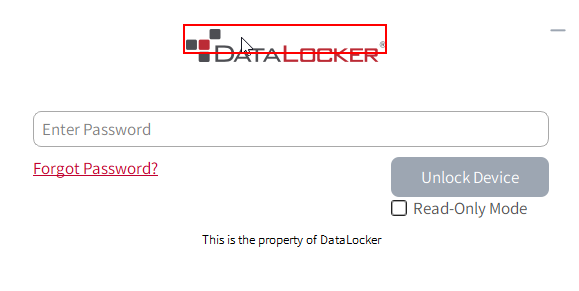
Launch the Unlocker application to open the password entry login screen (Control Panel).
On your keyboard, press and hold the Left Control (Ctrl) key.
While holding down the key, Left-Click your mouse in the blank white space directly above the DataLocker logo (indicated by the red highlighted area in the image below).
Understanding the Configuration Summary
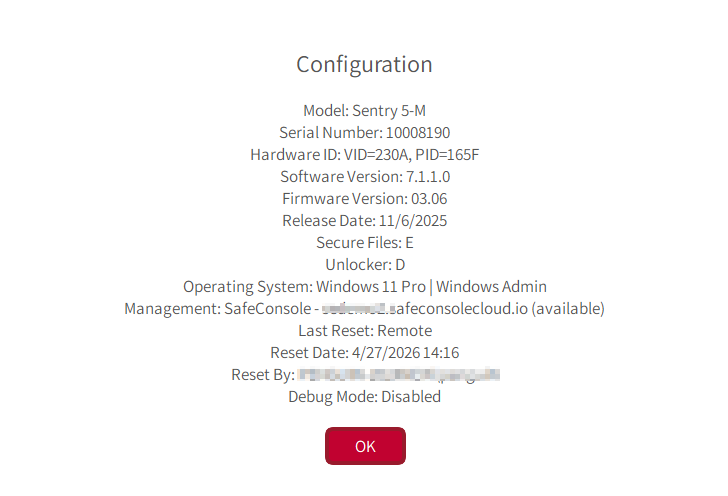
Once triggered, a Configuration details dialog window will pop up. This window lists critical metadata about your device.
1. Hardware & Software Information
Model & Serial Number: Identifies your specific hardware model (e.g., Sentry 5-M) and its unique physical tracking number.
Hardware ID: Displays the unique Vendor ID (VID) and Product ID (PID).
Software & Firmware Version: Displays the current software and low-level internal firmware versions running on the device.
2. Drive Mappings
Secure Files: Displays the drive letter assigned by the host operating system for your encrypted storage partition (visible only after successfully entering your password).
Unlocker: Displays the current drive letter assigned to the read-only partition hosting the DataLocker Unlocker application.
3. Management & Security Status
Management: Confirms if the device is registered to a centralized management environment. It will display your organization's unique SafeConsole Cloud/On-Premise URL and its current availability status.
Last Reset Information: Logs the timestamp, method (e.g., Remote), and identity of the administrator who last authorized a device factory reset or policy modification.
Debug Mode: Shows if debugging for the device is enabled or not.