

DataLocker PortBlocker
Mass Deployment
DATALOCKER PORTBLOCKER · MSI DEPLOYMENT v3.0
For mass deployment of PortBlocker 3.0 on Windows through any tool that wraps msiexec (Group Policy, SCCM/MECM, PDQ, and similar). Each endpoint installs silently, auto-registers against your SafeConsole tenant from values written at install time, and can run in a temporary audit-mode grace window during rollout.
Requirements
PortBlocker 3.0 MSI: PortBlocker-Setup.msi (x64) or PortBlocker-Setup-arm64.msi (Arm64).
Windows 10 or Windows 11.
Your SafeConsole tenant /connect URL.
Outbound TCP 443 from the endpoint to the tenant host.
msiexec Options
MSI Properties
Public properties are passed NAME=VALUE on the command line (uppercase, no space around =). They are written to HKLM\SOFTWARE\DataLocker\PortBlocker\AutoRegister and read by the service at first start to auto-enroll the endpoint.
Property | Req. | Values / Example | Effect |
| URL | Yes | https://<tenant>.safeconsolecloud.io/connect | Your SafeConsole tenant /connect URL. Must be the full endpoint URL, not the console login page. |
| EULA | Yes | 1 | Acknowledges the end-user license agreement. Required for silent installs and upgrades (/qn, /qb); the install aborts without it. Interactive installs accept through the EULA dialog instead. |
| USER | No | Example: eiA1ePbLrlHSwYV1IywEg== | Register PortBlocker to a specific user and path pre-defined in SafeConsole (Path Token Recommended) |
| ENABLEAUDITMODEDAYS | No | 1–365 | Days of allow-all-devices with logging after install before the endpoint switches to block-default. The window closes early the moment registration succeeds. Recommended for the first 24–72 hours of a rollout. |
| LAUNCH_CLIENT | No | 1 | 0 (default 1) | Whether the tray client launches right after install. Set 0 for hands-off mass deployment; the tray still appears at the next user logon. To keep it hidden for good, use the SafeConsole Hide Client UI policy. |
| PASSWORD | No | any string | Uninstall protection. If set, msiexec /x fails unless the same value is passed back. Once the endpoint registers, SafeConsole's uninstall-password policy replaces it. |
Examples
Silent install with auto-register and a 7-day audit window:
msiexec /i PortBlocker-Setup.msi /qn /norestart ^
URL="https://<tenant>.safeconsolecloud.io/connect" ^
USER="eiA1ePbLrlHSwYV1IywEg==" ^
EULA=1 ^
ENABLEAUDITMODEDAYS=7 ^
/l*v "C:\Windows\Temp\PortBlocker-install.log"
Uninstall (when a password was set):
msiexec /x PortBlocker-Setup.msi /qn PASSWORD="<your-uninstall-password>"
Audit Mode
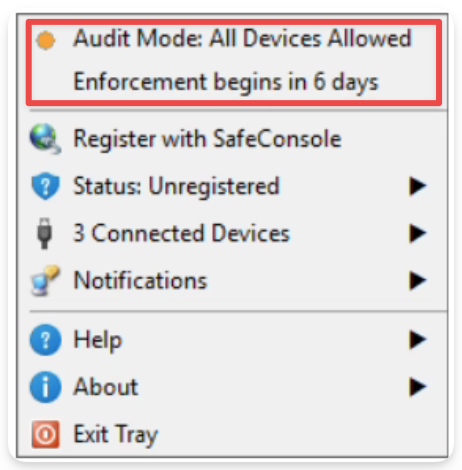
ENABLEAUDITMODEDAYS=N opens a time-bounded grace window that starts when the agent first runs. While the endpoint is not yet registered and the window is open, every device is allowed and every connection is logged, so users keep working during the rollout. The window closes the moment registration succeeds or after N days, whichever comes first, and the endpoint then follows the policy from SafeConsole. Audit mode is a fresh-install grace window only; it does not return after an unregister.
Uninstall Password
The uninstall password is controlled via a SafeConsole policy for both Windows and macOS. This will override the password set through the MSI install process.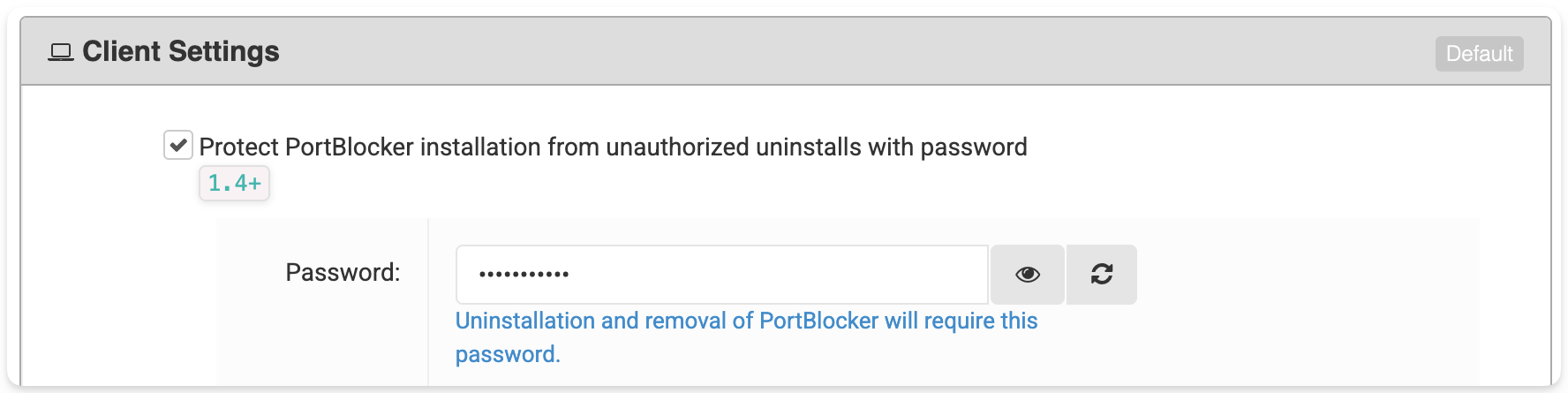
Hide Client UI
With this policy, the PortBlocker client UI will be hidden from the desktop. Notifications will also be unavailable.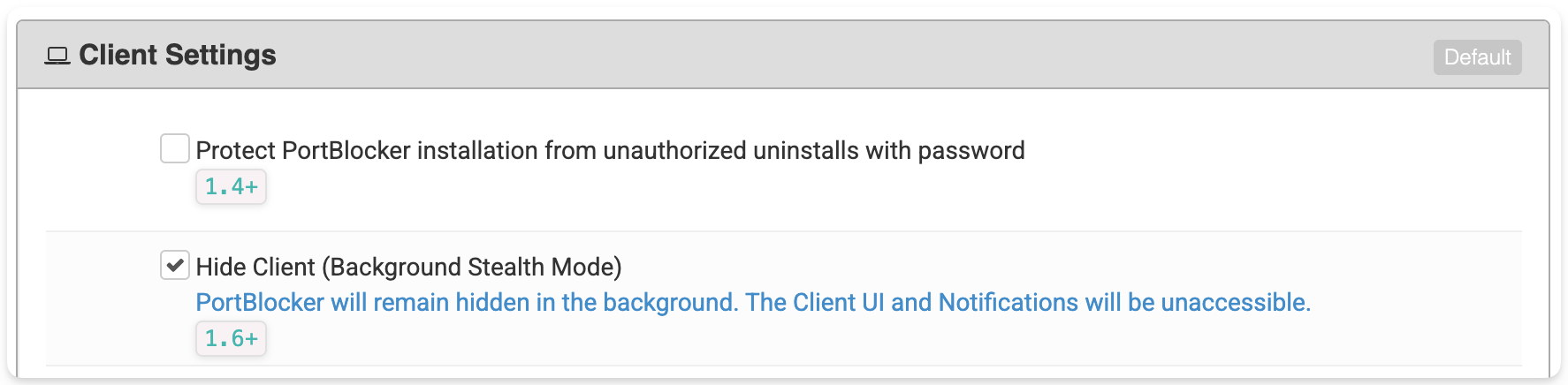
© 2026 DataLocker Inc. All rights reserved. · PortBlocker 3.0 MSI Command Line Arguments
Support: https://support.datalocker.com
DATALOCKER PORTBLOCKER · MSI DEPLOYMENT v2.3
Installation
The Portblocker-Setup.msi installer will deploy three key parts to the target workstation. The three parts consist of a Device Driver, Windows Service, and a Windows Application that the user can interact with. The installation will require local admin privileges to complete the process and is recommended to run as the system account to avoid UAC prompts. Once PortBlocker is installed, all mass storage type devices will be blocked. The following arguments can be used during installation.
/i: This is the msiexec option for install.
/quiet: used for silent installations on new installs and version upgrades.
/S: hides the notification that PortBlocker is already installed
/norestart: Prevents the machine from restarting automatically after the installation is completed.
/forcerestart: The machine will be restarted after the installation is complete.
Registration
Registration is needed before devices can be allowed. When registration parameters are successfully passed to the installer, PortBlocker will automatically register after installation. The following arguments can be used during installation to automatically register PortBlocker after registration.
URL=<SafeConsoleConnectionToken>: the SafeConsole connection token (https://myserver.safeconsolecloud.io/connect)
EULA=1: Accept the end-user license agreement on behalf of the user
USER=<UniqueToken>: OPTIONAL, register the PortBlocker Install to a specific user already in SafeConsole
LAUNCH_CLIENT=1 | 0: Launch Windows client application after installation. The default value is 1 (launch client application). It is recommended to set to 0 (do not launch client application) for mass deployment scenarios to avoid unresponsive client processes in the background. The client application should be launched by the user or startup script on user login in this case.
DISABLE_AUTO_UPDATE=1 | 0: OPTIONAL, Disables the automatic application update prompt. Set to value back to 0 to revert the change. (Requires 1.4.14.2+)
DISABLE_UI_SYS_STARTUP=1 | 0: OPTIONAL, Disables the PortBlocker UI during OS startup. UI can still be started by running the PortBlocker application. (Requires 1.6+)
HIDE_CLIENT_UI=1 | 0: OPTIONAL, Disables the PortBlocker UI. This will run PortBlocker as a process but UI cannot be triggered. (Requires 1.6+)
It is recommended that the SafeConsole Server be configured with both unique token and admin approval disabled. This will allow a simple registration process for the end-user.
Uninstall Password
As of PortBlocker version 1.4, and SafeConsole version 5.7, the uninstall password is controlled via a SafeConsole policy for both Windows and macOS.

The following argument can be used when uninstalling PortBlocker.
PASSWORD=: PortBlocker may be uninstalled via CMD or Powershell. Use "PASSWORD=" to specify the uninstallation password.
For more information regarding the uninstall process, please see the process in the PortBlocker admin guide starting on page 23:
Requirements
- PortBlocker 1.4.3+ or later MSI Installer
- Windows 10 and Windows 7
- SafeConsole Connection Token, ex: https://myserver.safeconsolecloud.io/connect
- Public server share to host installer, ex: \\nas\share\PortBlocker-Setup.msi
Example
This example PowerShell script can be modified for use with your software deployment tool.
*Note* Windows by default restricts execution of PowerShell script. However, this execution policy will not need to be changed for deployment as the script will execute with the privilege of the local system account. When testing the script locally, the PowerShell execution policy may need to be modified. For more information see Microsoft's documentation.
# Location of msi, such as a public network share
Set-Variable -Name "installer" -Value "\\nas\share\PortBlocker-Setup.msi"

# SafeConsole Connection URL
Set-Variable -Name "safeConsoleURL" -Value '"https://server.safeconsolecloud.io/connect"'

$installerArgs = "/i $installer /quiet /norestart EULA=1 URL=$safeConsoleURL LAUNCH_CLIENT=0"
Start-Process msiexec.exe -Wait -ArgumentList $installerArgs